After selling items on the POS and finishing the End-of-Day Declaration or the Tender Declaration, and the Z-Report, if needed, the statements are calculated and posted.
-
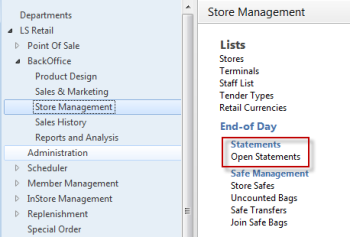
Go to LS Retail - BackOffice - Store Management - Lists - End-of Day - Statements - Open Statements. Click the New action.
-
Select your store. In case there are more stores in use, make sure that the date is correct for the statement and the store.
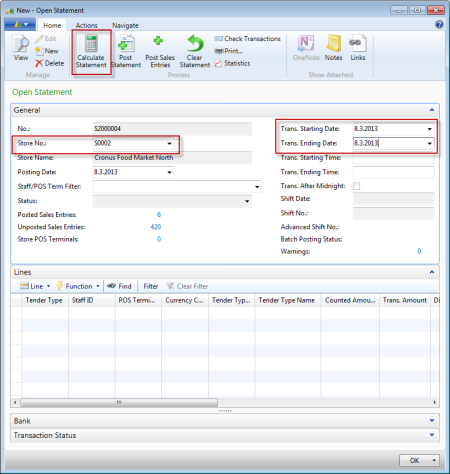
- Click Calculate Statement, confirm the action.
-
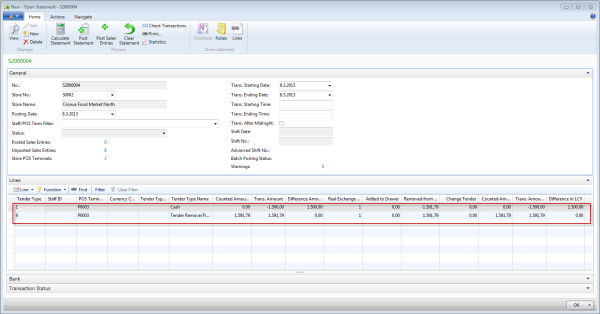
The statements appear on the Open Statement card:
-
The statements are now ready to be posted. Click Post Statement.
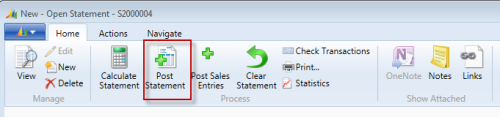
-
The statements are now in the Posted Statements list (LS Retail - BackOffice - Store Management - History - End-of Day - Statements - Posted Statements):
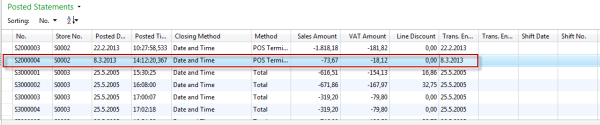
-
You can view a posted statement by selecting it from the statements list:
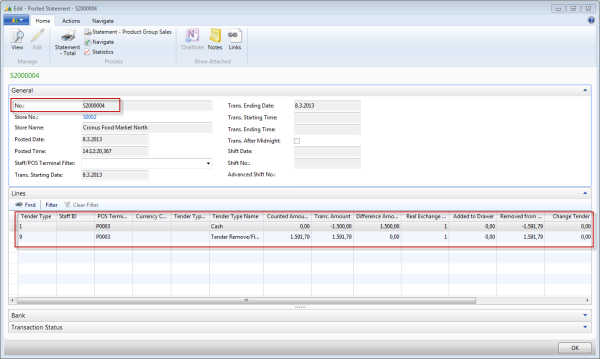
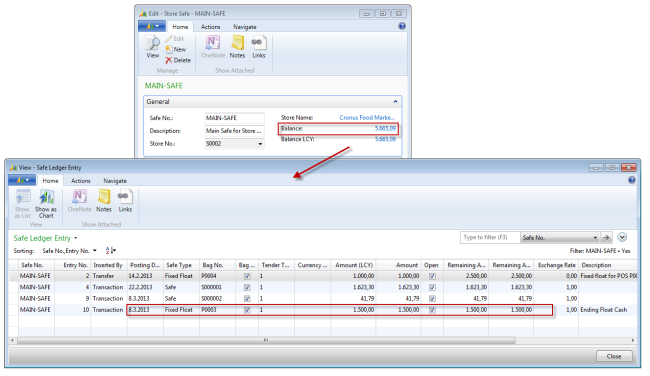
Tip: After posting, you can check the balance:
Go to LS Retail - BackOffice - Store Management - Lists - End-of Day - Safe Management - Store Safes, select a safe, and on the General FastTab click the number in the Balance field. The Safe Ledger Entry card opens. The amount there should be the 1500 for the Fixed Float.